A client came to me with two scares from Search Console in the same week. Over a thousand product pages on their Shopify store had lit up with structured data issues, and organic clicks had just fallen off a cliff. I am a marketer, not a developer, but I fix these with a bit of Liquid and a lot of validating. Here is the whole audit, and the one decision that saved a week of pointless work: knowing which warnings to fix and which to leave alone.
Key Takeaways
– Google lists onlyname,image, andoffersas required for merchant listings.brand,hasMerchantReturnPolicy,shippingDetails, andaggregateRatingare recommended, so most “errors” are really optional warnings (Google Search Central, 2026).
– Diagnose before you fix. The scary click drop turned out to be a seasonal spike ending plus Search Console’s data lag, not a penalty.
– One theme JSON-LD block controls every product page. I fixed it once and over a thousand items got corrected in a single edit.
– Never fabricateaggregateRatingorreviewmarkup. Fake reviews are a manual-action risk, and the star rating comes fromaggregateRatingalone.
What are Shopify “Merchant listing” errors, and do they hurt rankings?
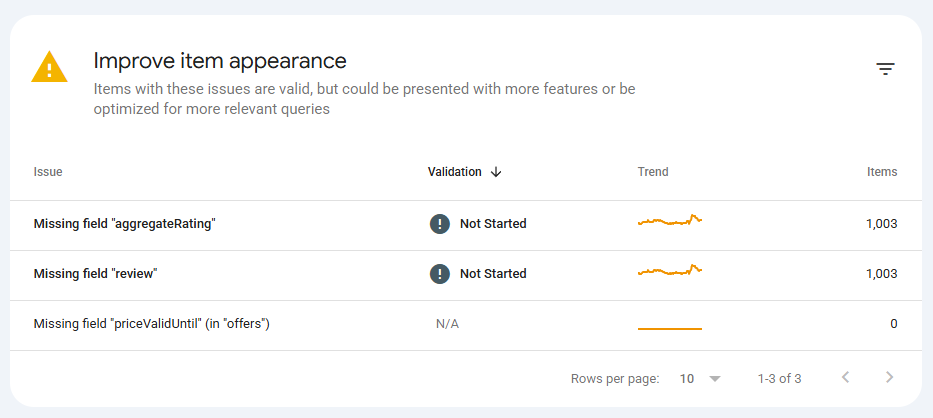
Merchant listing issues in Search Console are almost always warnings, not hard errors. Google’s own report files them under “improve item appearance” and states that the items are still valid, just eligible for more features. A merchant listing is a product result that can carry rich extras: a star rating, price, shipping, and return details. Structured data is the JSON-LD block in your page source that feeds those extras to Google. For Product structured data, only name, image, and offers are required. Everything else, including brand, hasMerchantReturnPolicy, shippingDetails, aggregateRating, and review, is recommended (Google Search Central, 2026).
That distinction matters, because a red icon reads like a fire and it usually is not one. However, a missing return policy will not deindex a page. What it costs you is the richer result: the star rating, price, shipping, and return badges that make a listing stand out in search and in the Shopping tab. So the target is not “clear every warning.” It is “earn the features worth earning.”
On this store, Search Console flagged five issues across the catalog: an invalid object type for brand, missing hasMerchantReturnPolicy, missing shippingDetails, an invalid string length in name, and missing aggregateRating. Each one touched just over a thousand products, which looks terrifying until you notice they all come from a single template.
Was it a schema problem or a traffic scare?
The click drop was not a penalty and it was not the schema. It was a seasonal cluster ending, made worse by Search Console reporting two to three days behind. I only trusted that once the numbers agreed, and checking first saved the client from paying me to “fix” something that was never broken.
Here is the tell. When I pulled daily data, impressions and clicks had both climbed for two weeks, peaked, then dropped together right after a holiday. One seasonal article and its query cluster accounted for most of the loss. Its average position had not moved at all. Same rank, fewer searchers. The last two days of the window showed almost nothing, which is the signature of Search Console’s processing delay, not a real zero.
The lesson is boring, and it is the most useful thing in this post: separate the traffic question from the schema question before you touch code. They landed in the same message and had nothing to do with each other.
How do you fix the errors in your theme’s Product schema?
All five issues lived in one place: the single application/ld+json block the theme renders on every product page. Fixing that block once corrected the whole catalog, because Shopify themes generate product schema from a shared section, not per product.
Here is what was wrong and how each piece got corrected:
brandused the wrong type. The theme output"@type": "Thing". Google wants aBrand(or anOrganization). A one-word change fixed every product.nameran too long on bundles. A few bundle products had titles past 150 characters because the title listed every free gift. Instead of renaming real products, I capped the schema field with Liquid’struncate: 150. The storefront title stays long; only the structured data is trimmed.- The image URL was quietly broken. This one was invisible in the admin. The theme built the schema image from a Liquid variable that did not exist, so it emitted something like
https:files/...instead of a real CDN URL. Every merchant listing effectively had no valid image. Pointing the code atproduct.featured_mediafixed it. - Return, shipping, and price validity were simply missing. I added them from the store’s own policy pages, using real values, not guesses.
The broken image is the one most people miss, because nothing in Search Console says “your image is malformed.” It rendered fine on the page, since the page image and the schema image are built by different lines of code. A confident wrong value is worse than a blank, because you never think to check it.
A generalized version of the corrected block looks like this. Swap the return and shipping values for the store’s own policies:
{%- assign price_valid_until = 'now' | date: '%s' | plus: 31536000 | date: '%Y-%m-%d' -%}
{%- capture rating_avg -%}{{ product.metafields.reviews.rating.value }}{%- endcapture -%}
{%- capture rating_count -%}{{ product.metafields.reviews.rating_count.value }}{%- endcapture -%}
{%- assign rating_avg = rating_avg | plus: 0.0 | round: 2 -%}
{%- assign rating_count = rating_count | plus: 0 -%}
<script type="application/ld+json">
{
  "@context": "https://schema.org/",
  "@type": "Product",
  "name": {{ product.title | truncate: 150 | json }},
  "image": [{% if product.featured_media %}{{ product.featured_media | image_url: width: 1200 | prepend: 'https:' | json }}{% endif %}],
  "sku": {{ product.selected_or_first_available_variant.sku | json }},
  "brand": { "@type": "Brand", "name": {{ product.vendor | json }} },
  {% if rating_count > 0 %}
  "aggregateRating": {
    "@type": "AggregateRating",
    "ratingValue": {{ rating_avg | json }},
    "reviewCount": {{ rating_count | json }},
    "bestRating": 5
  },
  {% endif %}
  "offers": {
    "@type": "Offer",
    "priceCurrency": {{ cart.currency.iso_code | json }},
    "price": {{ product.price | divided_by: 100.0 | json }},
    "priceValidUntil": "{{ price_valid_until }}",
    "availability": "https://schema.org/{% if product.available %}InStock{% else %}OutOfStock{% endif %}",
    "hasMerchantReturnPolicy": {
      "@type": "MerchantReturnPolicy",
      "applicableCountry": "US",
      "returnPolicyCategory": "https://schema.org/MerchantReturnFiniteReturnWindow",
      "merchantReturnDays": 14,
      "returnMethod": "https://schema.org/ReturnByMail",
      "returnFees": "https://schema.org/ReturnFeesCustomerResponsibility"
    },
    "shippingDetails": {
      "@type": "OfferShippingDetails",
      "shippingRate": { "@type": "MonetaryAmount", "value": "0", "currency": "USD" },
      "shippingDestination": { "@type": "DefinedRegion", "addressCountry": "US" },
      "deliveryTime": {
        "@type": "ShippingDeliveryTime",
        "handlingTime": { "@type": "QuantitativeValue", "minValue": 1, "maxValue": 3, "unitCode": "DAY" },
        "transitTime": { "@type": "QuantitativeValue", "minValue": 2, "maxValue": 5, "unitCode": "DAY" }
      }
    }
  }
}
</script>
One habit that paid off: I staged the change on a side template first, viewed it through a preview parameter, and validated the rendered JSON before touching the live file. On a catalog this size, a broken template is a bad way to find a typo. If you want the background on how I edit theme files through the API instead of the theme editor, I wrote that up in connecting Claude to Shopify.
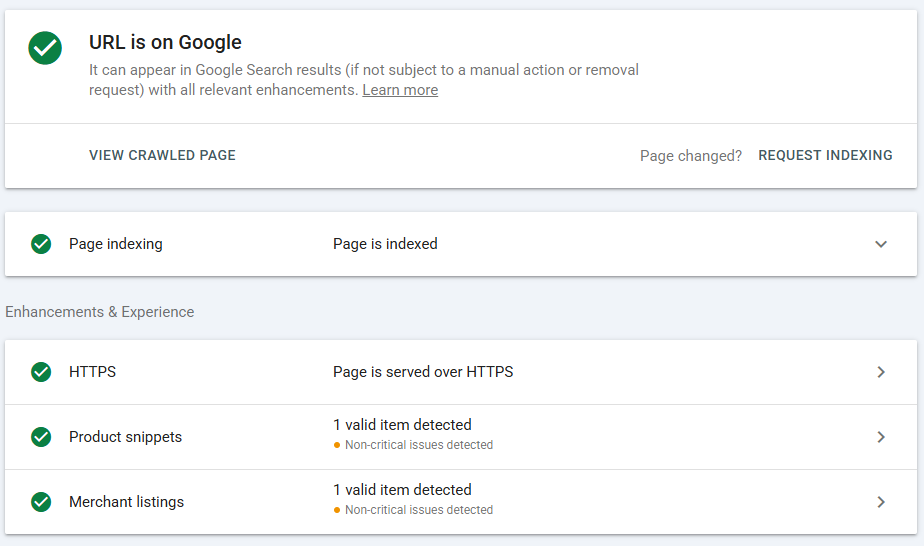
After the edit, Google’s URL Inspection confirmed the two experiences that matter for a store, product snippets and merchant listings, both reading as valid.
Feed or markup: where should shipping and returns actually live?
For shipping and returns, the store’s Merchant Center or Search Console settings beat on-page markup, so if the store sells through Shopping it probably already has shipping covered in the feed. You still add the markup, because the two sources work together and the Search Console report reads the markup, not the feed.
Google publishes the exact order of precedence, strongest to weakest (Google Search Central, shipping policy, 2026):
In practice, two things follow. First, if a shipping value ever disagrees between the feed and the markup, the feed wins, so keep them consistent. Second, the Merchant listings report in Search Console is scored against your on-page markup. That is why a store with perfectly good Merchant Center shipping can still show a “missing shippingDetails” warning for months. The feed satisfies Shopping; the markup satisfies the report and plain web results. You want both. Google’s product docs note that some result types even blend the two, using feed pricing when the on-page markup omits it.
How do you get star ratings into the product schema?
Star ratings come from aggregateRating, and that field should read from the store’s review app data, never from a number you typed. aggregateRating is the summary object, an average score plus a review count, that produces the visible stars. On this store the review app writes two Shopify metafields per product, an average and a count, and the theme reads them straight into the schema. The moment a product has real reviews, the stars appear.
Two gotchas cost me time, and both are worth knowing before you hit them:
- A metafield came back sometimes as a number and sometimes as a string. One product stored its average as
5, another as"0". In Liquid, comparing a string to a number throws an error and quietly breaks the whole JSON block on that page. The fix is to coerce every value with a filter like| plus: 0.0before you compare or print it. - The rating metafield is an object, not a plain number. The review app stored it as Shopify’s
ratingtype, which is a small object with a value and a scale, not a bare float. Capturing the rendered value into a string first, then coercing it, handled both shapes without special-casing.
There is a real payoff to reading ratings from a metafield instead of a review app widget. This client was mid-migration from a legacy review app to a new one, so I pointed the schema at the new app’s metafield with a fallback to the old one. The stars kept showing through the whole switch, and once the new reviews finished importing, the old source just went quiet. Schema that reads data survives a platform change. Schema with a number typed into it does not.
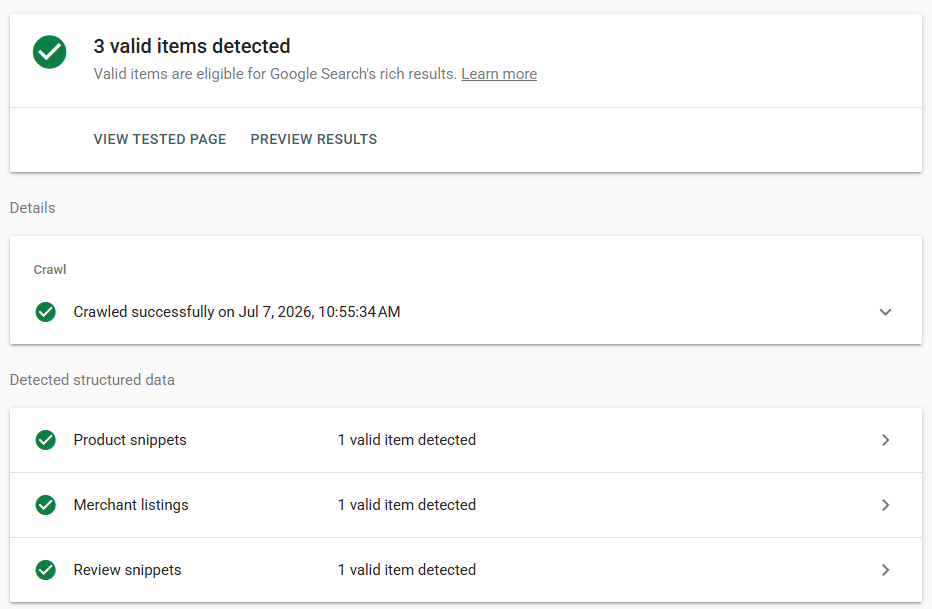
Once real reviews were flowing, the Rich Results Test returned the clean end state: product snippets, merchant listings, and review snippets, all valid on one page.
Which warnings should you fix, and which should you ignore?
Fix the ones that apply to every product. Ignore the ones that can never reach 100 percent. Search Console validation is all-or-nothing per issue, so trying to validate a warning that will always have unaffected pages is a trap that burns days.
Here is the call I made, and why:
| Search Console warning | Fix it? | Why |
|---|---|---|
Invalid object type for brand |
Yes | One-word markup bug, corrects every product at once |
Invalid string length in name |
Yes | Cap the schema field at 150 characters, no product renaming |
Missing hasMerchantReturnPolicy |
Yes | Real listing feature, one block covers the catalog |
Missing shippingDetails |
Yes | Same, and the report stays flagged even with feed shipping |
Missing priceValidUntil |
Yes | Trivial, add a rolling date one year out |
Missing aggregateRating |
Only where real | Emit it only for products with genuine reviews, never fake it |
Missing review (individual reviews) |
Safe to ignore | The star rating comes from aggregateRating, full review objects add little visible benefit |
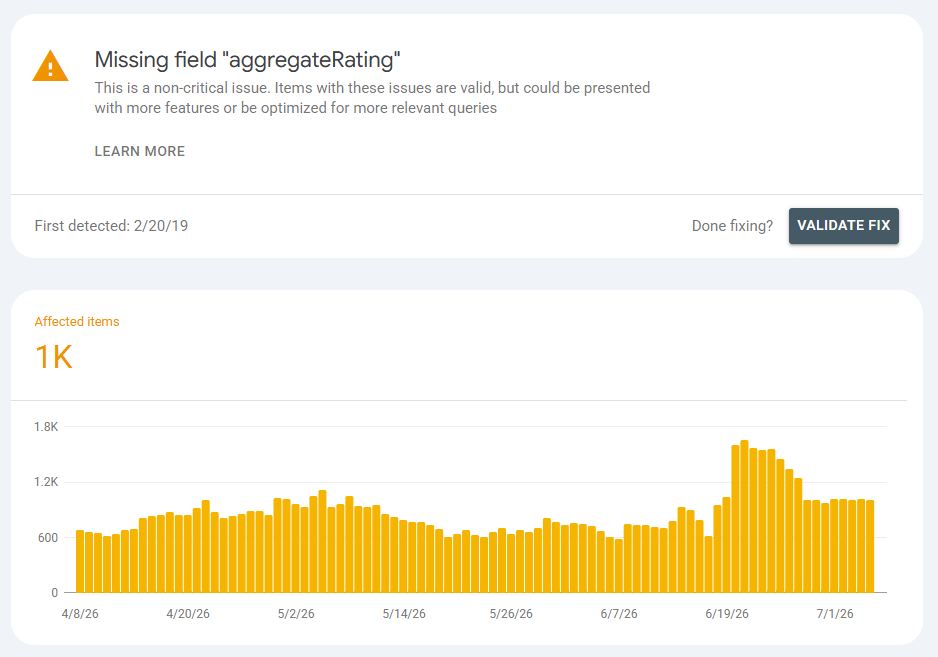
Two traps I hit personally. First, returnFees has to use one of Google’s accepted enum values. I used RestockingFees, which is a real schema.org value, and the Rich Results Test rejected it as an invalid enum. Switching to ReturnFeesCustomerResponsibility passed on the next test. A valid schema.org value is not automatically a valid Google value, and that mismatch is a frustrating way to lose an afternoon.
Second, do not click “Validate Fix” on the review or aggregateRating warnings. Most catalogs have thousands of products with zero reviews, so those warnings will always find affected pages and the validation refuses to start, with a “cannot continue” message. That is expected. Let them fall on their own as real reviews come in.
Verdict: fix the catalog-wide stuff, ignore the rest
Worth doing in-house if someone on the team can edit a theme’s Liquid: back up the section, correct the one JSON-LD block, stage it on a side template, validate, then publish and request validation only on the issues that touch every product. That is a one-evening job and it moves the whole catalog at once.
Not worth doing by hand if theme code is not where anyone wants to spend the night. The failure mode here is a broken template across the entire catalog, which is worse than the warnings you started with. This is the kind of small, boring, high-value task worth handing to a script. It is the same move I made when I handed one client’s ad account to a tool I built to find its money leaks.
Either way the pattern is the same: diagnose the traffic separately from the schema, fix the theme’s one shared block so the catalog moves together, let the feed own Shopping while the markup cleans up web search, and read ratings from real review data instead of typing a number. Clear the warnings worth clearing, and let the rest resolve themselves. That is the audit, start to finish.
Frequently Asked Questions
Do Shopify merchant listing warnings hurt my Google rankings?
No. Google files them under “improve item appearance” and confirms the items are still valid (Google Search Central, 2026). They change how rich your result looks, such as showing stars, price, and shipping, not whether the page can rank. Fix them to win features, not to avoid a penalty.
Do I need shipping markup if my Merchant Center feed already has shipping?
For Google Shopping, the feed covers you, because Merchant Center settings outrank on-page markup in Google’s precedence order. You still add markup, because the Search Console Merchant listings report reads your markup and regular web results can use it too. Keep the two consistent so they never disagree.
How do I add star ratings without breaking Google’s rules?
Read aggregateRating from the store’s real review app data, usually a Shopify metafield holding an average and a count, and only emit it when a product actually has reviews. Never hardcode a rating or invent reviews. Fabricated review markup is a documented manual-action risk, and the visible stars come from aggregateRating alone.
Why does “Validate Fix” fail on the review warning?
Because validation is all-or-nothing per issue. If any affected page still lacks the field, it will not start. Most stores have many products with no reviews, so the review and aggregateRating warnings always have affected pages. Skip validation on those two and validate only the issues you fixed catalog-wide.
How long until Search Console clears the fixed warnings?
Plan for one to three weeks. After you click “Validate Fix,” Google re-crawls affected URLs over days, and the report count drops gradually. You can confirm a fix instantly on any single page with the Rich Results Test, which reads the live markup without waiting for the next crawl.
External sources accessed and verified on 2026-07-07.
Sources
– Google Search Central, Merchant listing (product) structured data, retrieved 2026-07-07, https://developers.google.com/search/docs/appearance/structured-data/merchant-listing
– Google Search Central, Product structured data, retrieved 2026-07-07, https://developers.google.com/search/docs/appearance/structured-data/product
– Google Search Central, Merchant shipping policy structured data, retrieved 2026-07-07, https://developers.google.com/search/docs/appearance/structured-data/shipping-policy
– Google Search Central, Organization structured data, retrieved 2026-07-07, https://developers.google.com/search/docs/appearance/structured-data/organization